Disk defragmentation is a Windows maintenance process that rearranges scattered file fragments on a hard drive. Over time, files can become split into pieces across different parts of the disk, which can slow down access on traditional HDDs.
When Windows runs defragmentation, it analyzes the drive, finds fragmented files, and moves data so related pieces are stored closer together. This reduces the physical movement needed by the drive head and can improve performance.
Why It Matters for HDDs
On mechanical hard drives, fragmentation can lead to slower file loading, longer boot times, and less responsive performance. Defragmentation helps organize the data more efficiently.
What About SSDs?
Solid-state drives do not need traditional defragmentation because they have no moving parts. Windows automatically uses the correct optimization method for SSDs, such as TRIM, instead of classic defrag.
Tip: Most Windows systems already optimize drives automatically, so manual defragmentation is usually unnecessary.
How to Optimize a Drive
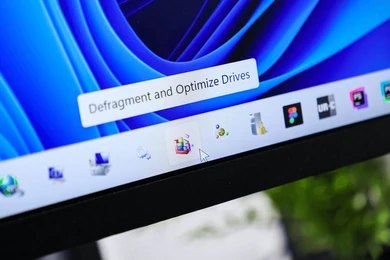
- Open Defragment and Optimize Drives from the Start menu.
- Select the drive you want to check.
- Click Optimize to start the process.
In short, defragmentation helps HDDs perform better by organizing scattered data, but modern Windows systems usually take care of this automatically.