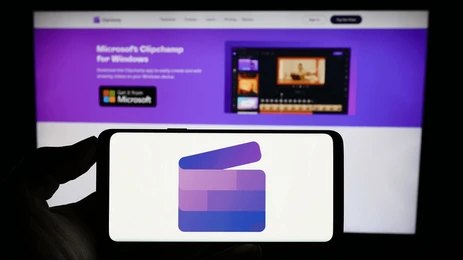
This is the modern world, where videos are everywhere. Clipchamp By Microsoft Makes Editing Faster for Beginners Today, videos are the main way people communicate online, and everyone—whether they’re content creators on YouTube, influencers on Instagram Reels, or news channels—needs a video editor that’s easy to use and has powerful tools. Especially one that gives you premium features for free. Today, we’re introducing you to one such video editor.
Microsoft Clipchamp Editor now offers some of the most advanced editing features at no cost.
It has a simple interface, a free media library full of videos, images, and music, AI-powered tools, screen and webcam recording, social media-friendly export options, and cloud storage, among other things. Let’s take a look at how to use Clipchamp.
Key Features of Clipchamp in 2025
User-friendly interface: Clipchamp makes video editing simple with its drag-and-drop design.
You can cut, trim, add transitions, and more quickly and easily.
Free stock media library: Clipchamp provides thousands of free videos, images, and music files.
These are perfect for making social media content or promotional videos.
AI-powered tools: Clipchamp includes text-to-speech, voiceover, and auto-captioning.
You can add voice narration or subtitles without having to record your own voice.
Screen and webcam recording: Clipchamp is great for online classes, tutorials, or gaming videos.
It allows you to record both your screen and webcam at the same time.
Social media-friendly formats: Clipchamp offers preset formats for YouTube, Instagram, TikTok, and Facebook.
It also supports various aspect ratios like 16:9, 9:16, and 1:1.
OneDrive support: Since Clipchamp is part of Microsoft, it connects directly to OneDrive.
All your projects are saved automatically to the cloud.
How to Use Clipchamp
Step 1: Go to clipchamp.com or open the Clipchamp app on your Windows 11 computer.
Sign in with your Microsoft account.
Step 2: Click ‘Create Video’ and choose the video size—either 16:9 or 9:16.
Step 3: Upload your media files or pick from the stock media library.
Step 4: Edit your video in the timeline.
You can trim, crop, add text or filters, and even add transitions and stickers.
Step 5: Add background music or an AI voice, and adjust the volume as needed.
Step 6: When you’re done editing, click ‘Export.’
You can download the video in 720p, 1080p, or 4K quality. For 4K, you’ll need a Pro subscription. Or you can upload it directly to YouTube.
I use Clipchamp regularly, and now it’s even easier, faster, and more efficient.
Clipchamp is a great tool for anyone looking for a free, fast, and smart video editor. The AI features, simple social media formats, and easy OneDrive integration make Clipchamp a top choice for all creators.