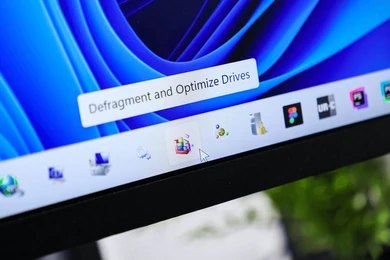
A slow Windows 11 PC can be really frustrating, especially when you’re trying to work or play games. Over time, most PCs start lagging due to unnecessary programs, junk files, and background processes.
After trying different methods on my own system, I found some fixes that actually made a noticeable difference. Here are the methods that worked best for me.
1. Disable Unnecessary Startup Programs
Many programs launch automatically when you start your PC, which slows down the boot time. Disabling them is one of the quickest ways to improve performance.
- Press Ctrl + Shift + Esc to open Task Manager.
- Go to the Startup tab.
- Right-click on programs you don’t need and select Disable.
This simple step helped my PC boot much faster.
2. Clean Up Temporary and Junk Files
Temporary files and cached data take up space and slow down your system over time.
- Press Windows key + R, type
%temp%, and press Enter. - Select all files and delete them (skip any that are in use).
- Also run Disk Cleanup from the Start menu for a deeper clean.
Doing this regularly keeps your PC running smoother.
3. Update Windows and Drivers
Outdated Windows and drivers are a common reason for slow performance.
- Go to Settings > Windows Update and install all pending updates.
- Update your graphics drivers directly from NVIDIA, AMD, or Intel’s website.
Keeping everything updated often fixes performance issues.
4. Turn Off Unnecessary Visual Effects
Windows 11 has many animations and visual effects that consume resources.
- Search for Performance Options in the Start menu.
- Select Adjust for best performance.
- Click Apply and restart your PC.
This makes the system feel snappier, especially on lower-end hardware.
5. Turn On Storage Sense
Storage Sense automatically removes temporary files and old downloads.
- Go to Settings > System > Storage.
- Turn on Storage Sense.
- Click on it and customize how often it runs.
This is a low-effort way to keep your storage clean.
6. Disable OneDrive Sync (If You Don’t Use It)
OneDrive runs in the background and can slow down your PC even if you rarely use it.
- Right-click the OneDrive icon in the taskbar.
- Go to Settings > Account.
- Click Unlink this PC.
You can always relink it later if needed.
7. Run a Malware Scan
Malware and viruses can significantly slow down your computer.
- Open Windows Security and run a full scan.
- Or use a trusted tool like Malwarebytes for a second opinion.
Removing hidden threats often improves speed dramatically.
8. Upgrade Your Hardware (If Possible)
If your PC is still slow after trying the above steps, hardware upgrades help the most.
- Add more RAM (16GB is ideal for Windows 11)
- Replace your HDD with an SSD
- Consider upgrading your processor if your motherboard supports it
An SSD upgrade alone can make an old PC feel brand new.
Extra Tips for Better Performance
- Restart your PC at least once a week
- Avoid installing too many programs
- Use a lightweight antivirus instead of heavy security suites
- Keep your desktop clean and organized
Final Thoughts
Speeding up a slow Windows 11 PC doesn’t always require advanced tools. Start with the basic methods like disabling startup programs and cleaning temporary files. If the issue continues, move on to driver updates and hardware upgrades.
Most users see good improvement after applying the first few methods.
Have you tried any of these methods on your PC? Let me know which one worked for you.